How to Login to The Client Area and Cpanel


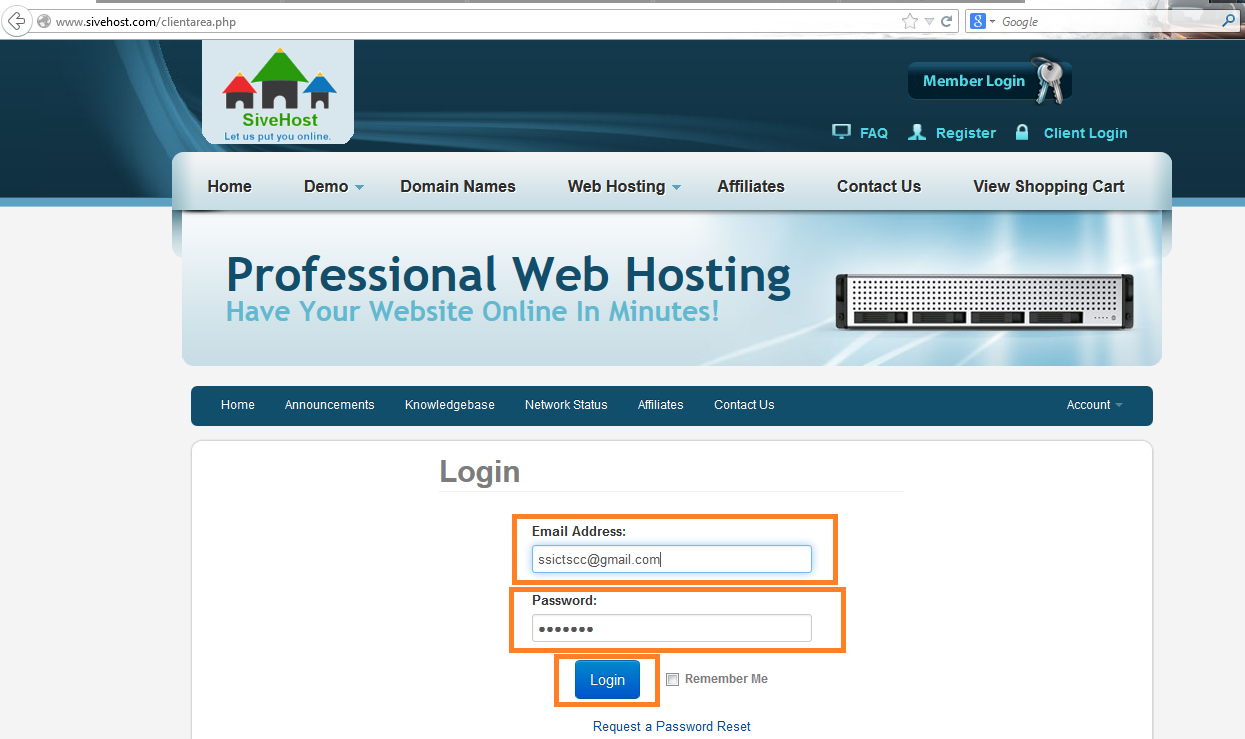
We begin to login at the Portal Home. This is the Login Page for the Client Area of WHMCS. It contains a line for the email address and a password. They are different than the login details for your cPanel. 

Enter your email address. Then enter your WHMCS Password. Now click on Login. That's all. You are now logged in to WHMCS and can begin to manage your hosting services, invoices, billing information, and more.

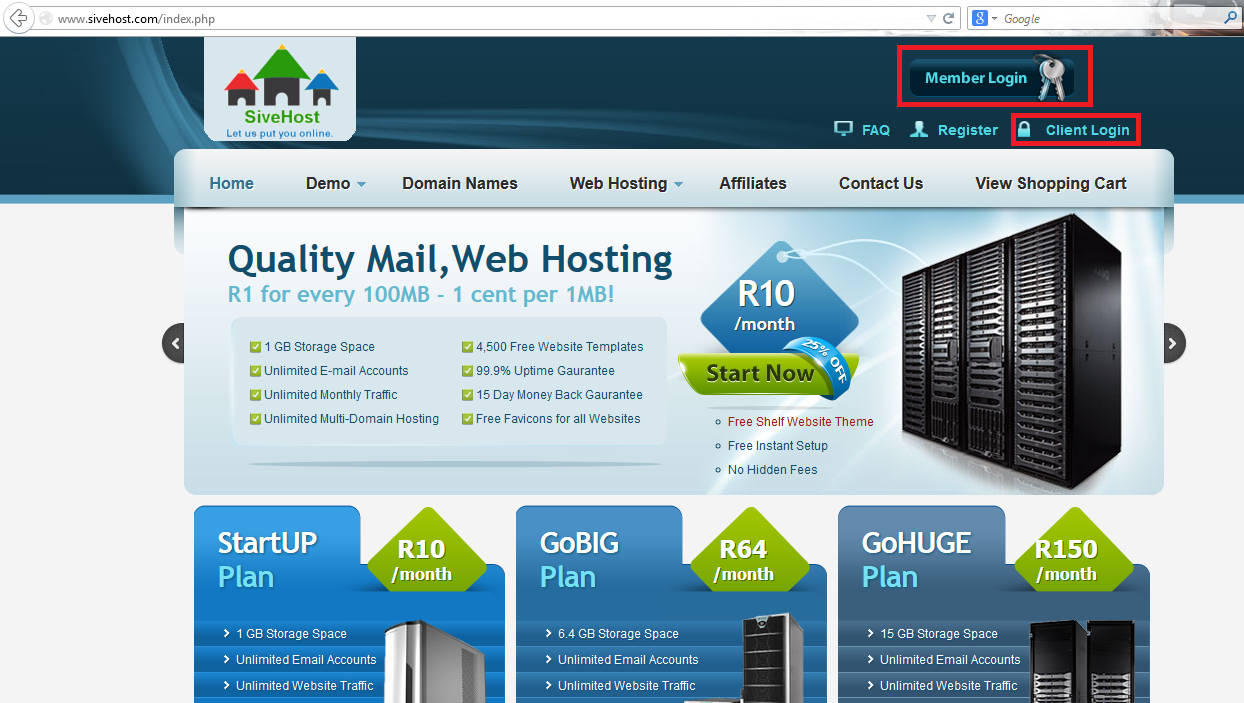
New HomePage
New SignIN Page


How to upload files on Cpanel:

https://www.sive.host/knowledgebase.php?action=displayarticle&id=20

When you are done, click on the Logout Link in the upper right corner. You are now logged out of the account. There is a Click here to Continue link. Click that link. This will take you to the Portal Home.

How to setup emails:

https://sive.host/knowledgebase/95/Outlook-or-Eudora-or-Thunderbird-or-Mac-or-iPad-or-Phone-Client-Settings.html


  • 4 Users Found This Useful
這篇文章有幫助嗎?

相關文章

Overview of the Client Area Dashboard: What You Can Do

Welcome to your Client Area — your central hub for managing all things hosting, domains, servers,...

How to view your domain/website address details

Need to check your domain name, renewal date, or DNS settings? You can view all the details of...

How to Update Your Home Address in the Client Area

1. Log in to your SiveHost account.  2. In the top-right menu, click the Account dropdown and...

How to Search for a Knowledge Base Article

Step-by-Step Guide   Log in to your Sive.Host Client Area.   2. From the top menu, click on...

How to View Your Domain’s WHOIS Information

Purpose of Viewing WHOIS Information WHOIS information provides important details about your...